
Get started
Install Sandbox Studio, start your AWS Marketplace subscription and set up your first governed AWS sandboxes.
- 30-day free trial
- Inside your AWS Organisation
- Install wizard or CloudFormation
Try Sandbox Studio now
Explore the Sandbox Studio interface in our preview environment. No AWS account or interaction is required.
What is the preview?
A read-only demo of the real product with sample data, so you can explore the admin, manager and user experience in your browser.
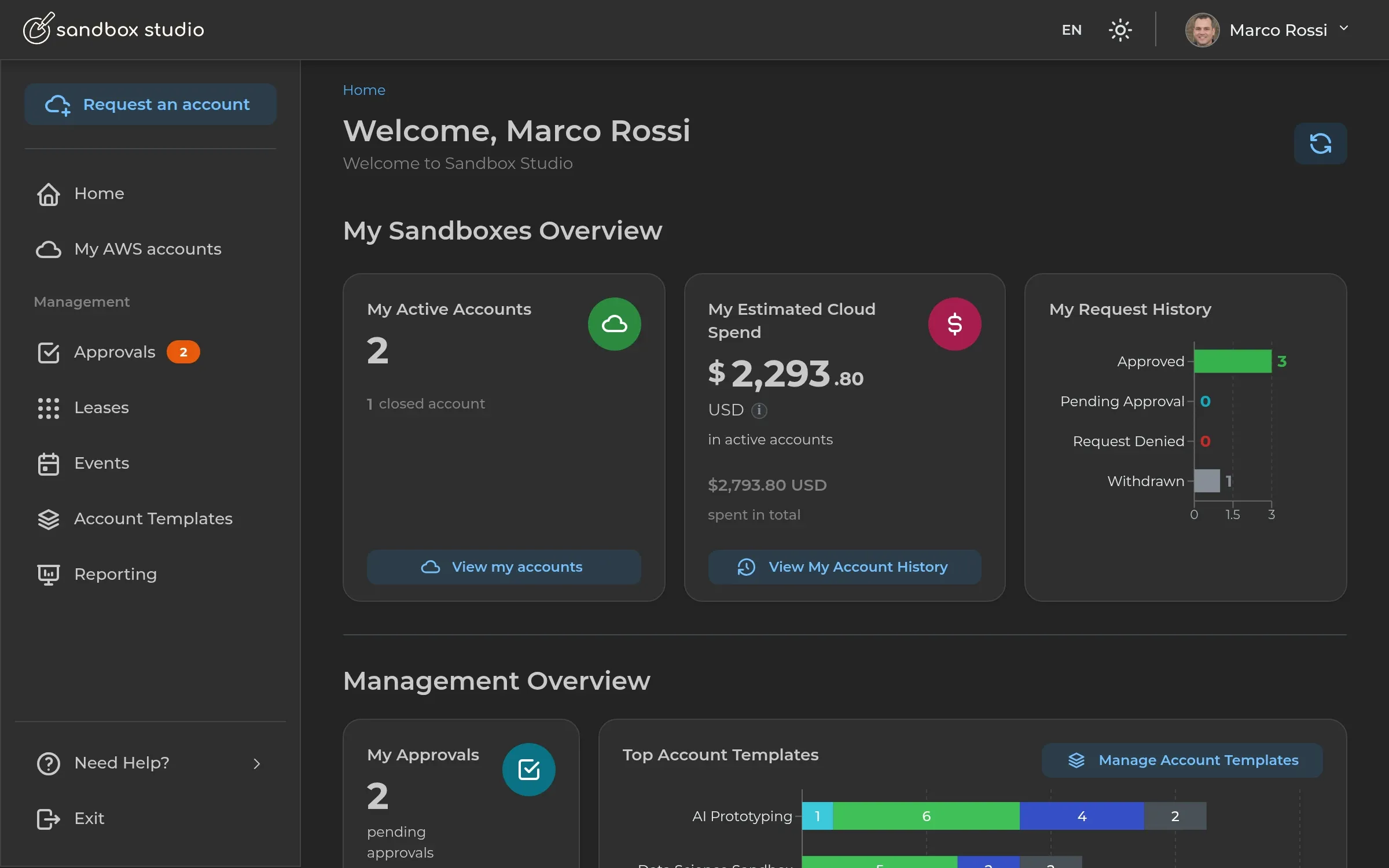
Three simple steps
- 1
Install
Deploy Sandbox Studio using the guided installation wizard or manual CloudFormation deployment.
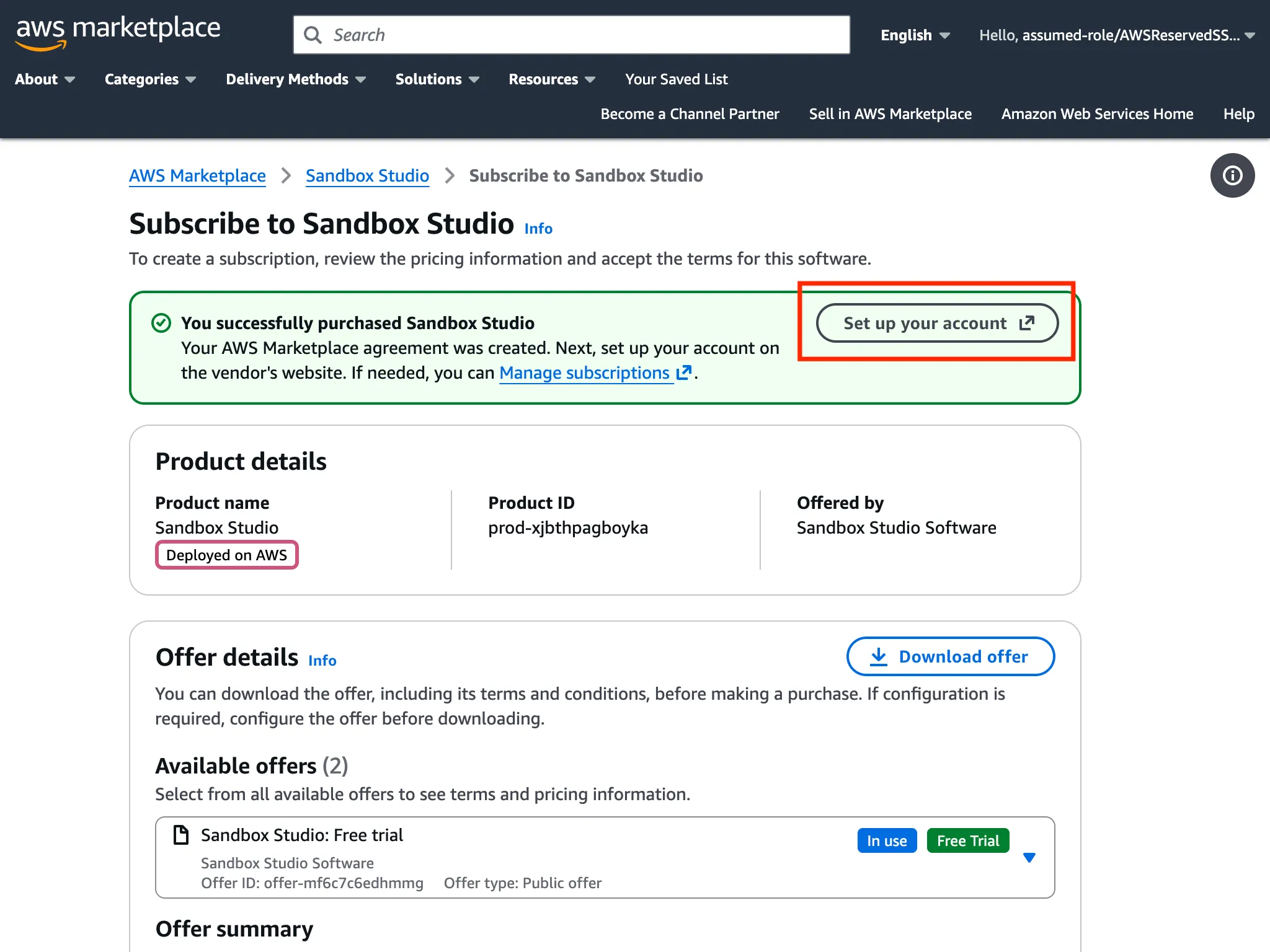
- 2
Subscribe
Start the 30-day free trial through AWS Marketplace for up to 3 concurrent sandbox accounts.
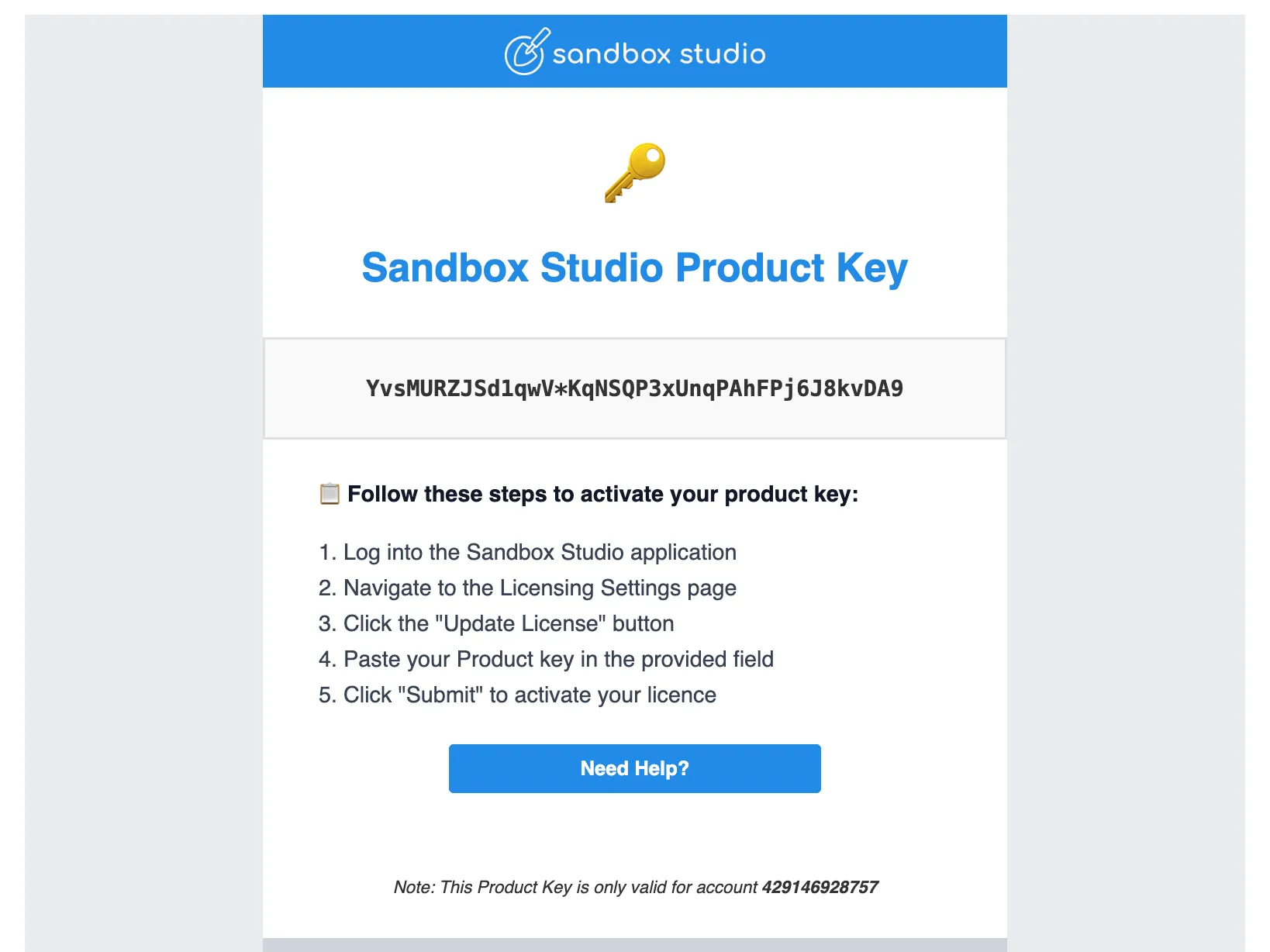
- 3
Activate
Enter the product key and begin exploring and managing AWS sandbox accounts.
Try it here
Pick a template and press launch: the site acts out what Sandbox Studio does, in a few seconds, no AWS account needed.
$ waiting for launch…
Account ready
AI Innovation
AWS 4821·3390·1177 · budget $200 · 14 days
Login to account ↗One command in AWS CloudShell.
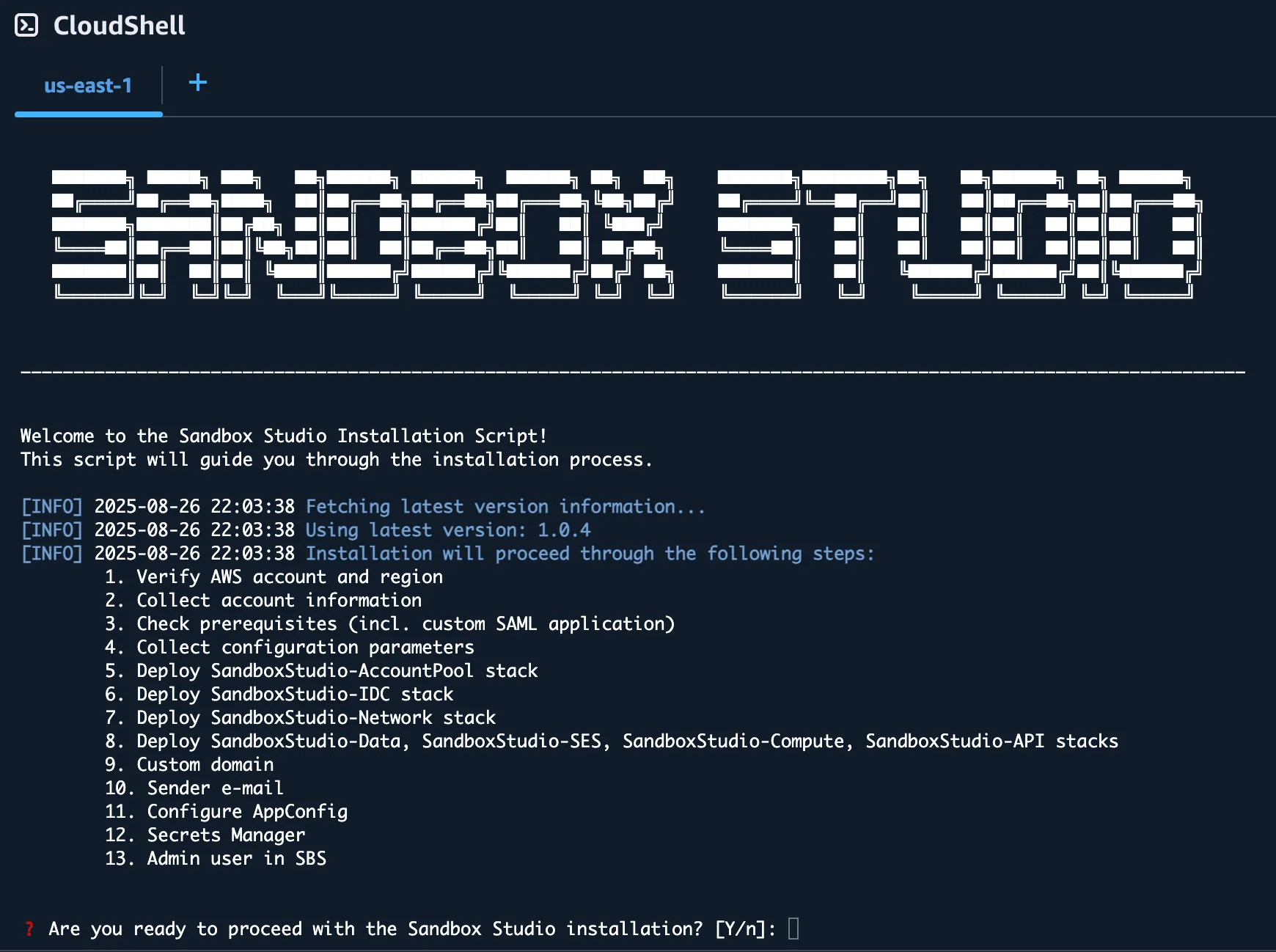
The guided installer checks your prerequisites, collects configuration and deploys every stack for you.
Read the installation guide ↗$ bash <(curl -s https://dist.sandboxstudiosoftware.com/install.sh)
███████  █████  ███    ██ ██████  ██████   ██████  ██   ██
██      ██   ██ ████   ██ ██   ██ ██   ██ ██    ██  ██ ██
███████ ███████ ██ ██  ██ ██   ██ ██████  ██    ██   ███
     ██ ██   ██ ██  ██ ██ ██   ██ ██   ██ ██    ██  ██ ██
███████ ██   ██ ██   ████ ██████  ██████   ██████  ██   ██  STUDIO
Welcome to the Sandbox Studio Installation Script!
[INFO] Fetching latest version information…
- 1. Verify AWS account and region
- 2. Collect account information
- 3. Check prerequisites (incl. custom SAML application)
- 4. Collect configuration parameters
- 5. Deploy SandboxStudio-AccountPool stack
- 6. Deploy SandboxStudio-IDC stack
- 7. Deploy SandboxStudio-Network stack
- 8. Deploy SandboxStudio-Data, -SES, -Compute and -API stacks
- 9. Custom domain
- 10. Sender e-mail
- 11. Configure AppConfig
- 12. Configure Secrets Manager
- 13. Admin user in SBS
[SUCCESS] Sandbox Studio installed. Open your web app URL to sign in.
Deployment options
Self-operated
Deploy and operate inside your AWS Organisation with full control.
- Guided installation wizard
- Manual CloudFormation deployment
- Custom network configuration
- Documentation and SBS support
Partner-supported
Work with an approved SBS or AWS partner for design, deployment and operations.
- Architecture and implementation
- Advisory and service catalogue
- Template development
- Managed service options
Sovereign and regulated
For organisations with enhanced sovereignty and regulatory requirements.
- Sovereign deployment patterns
- Region and residency controls
- Compliance-aligned configurations
- Register your interest
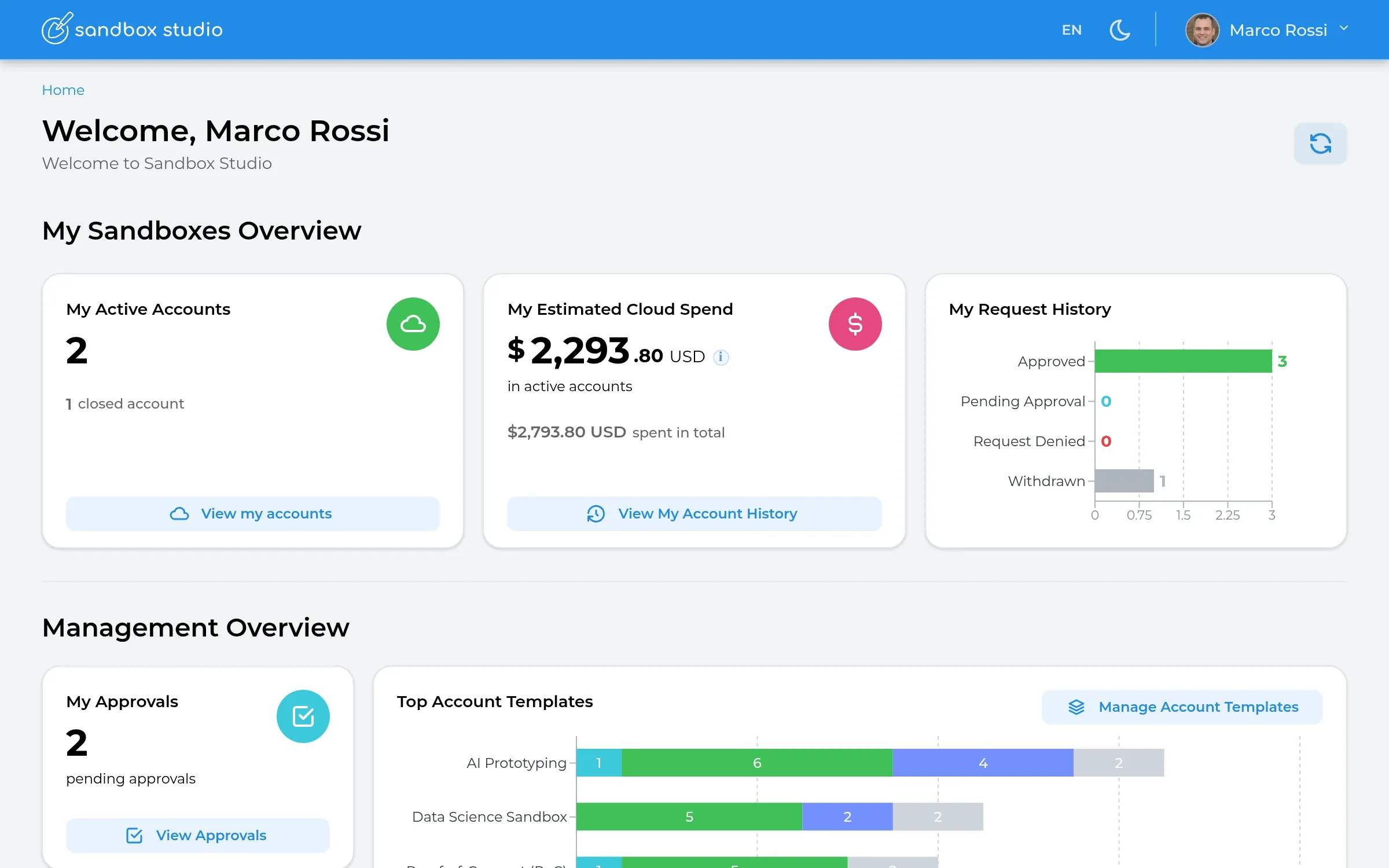
Configure and launch
01 / 04
Connect identity
Connect the identity providers your people already use.
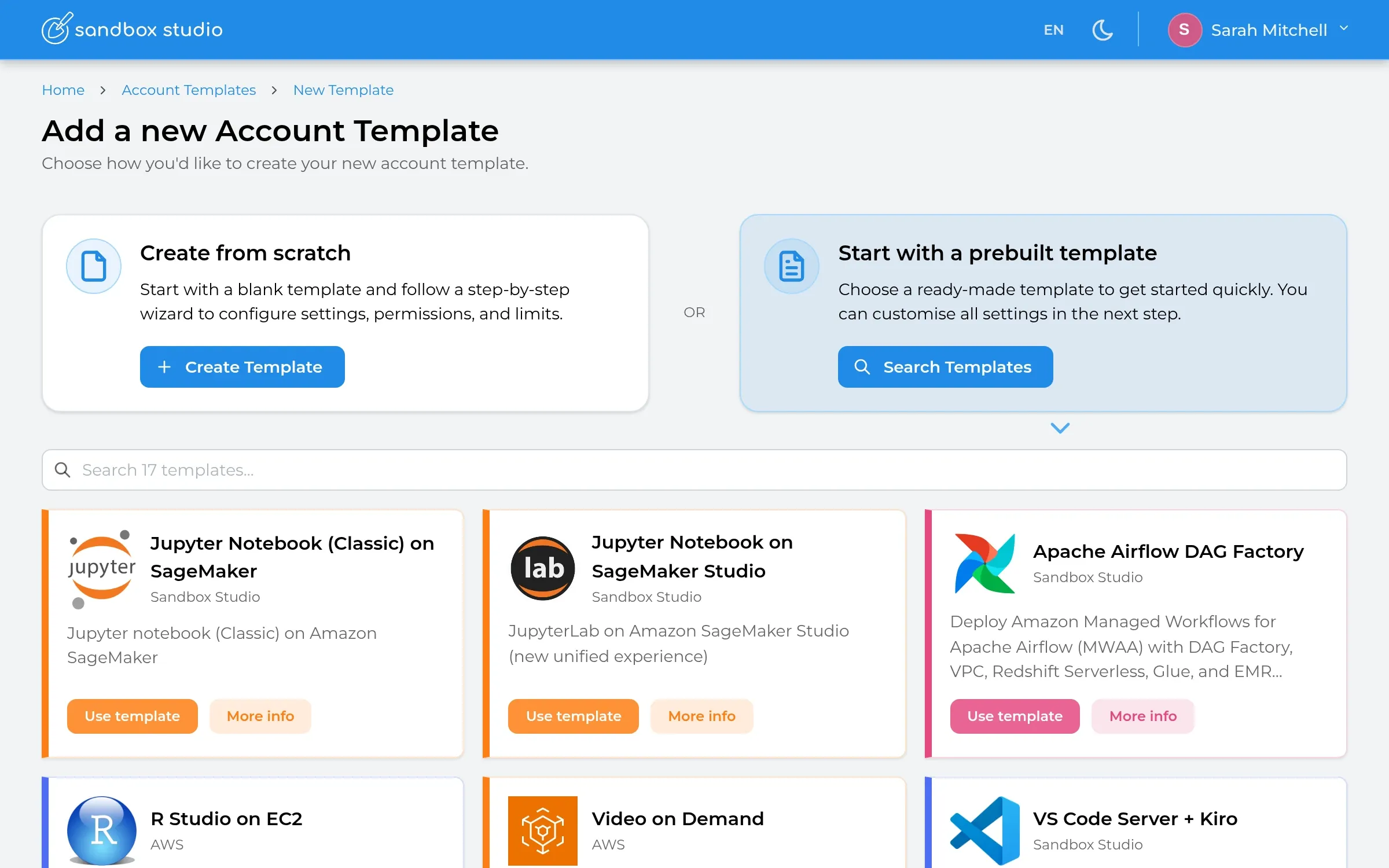
02 / 04
Choose a starting point
Start from scratch or a prebuilt template.
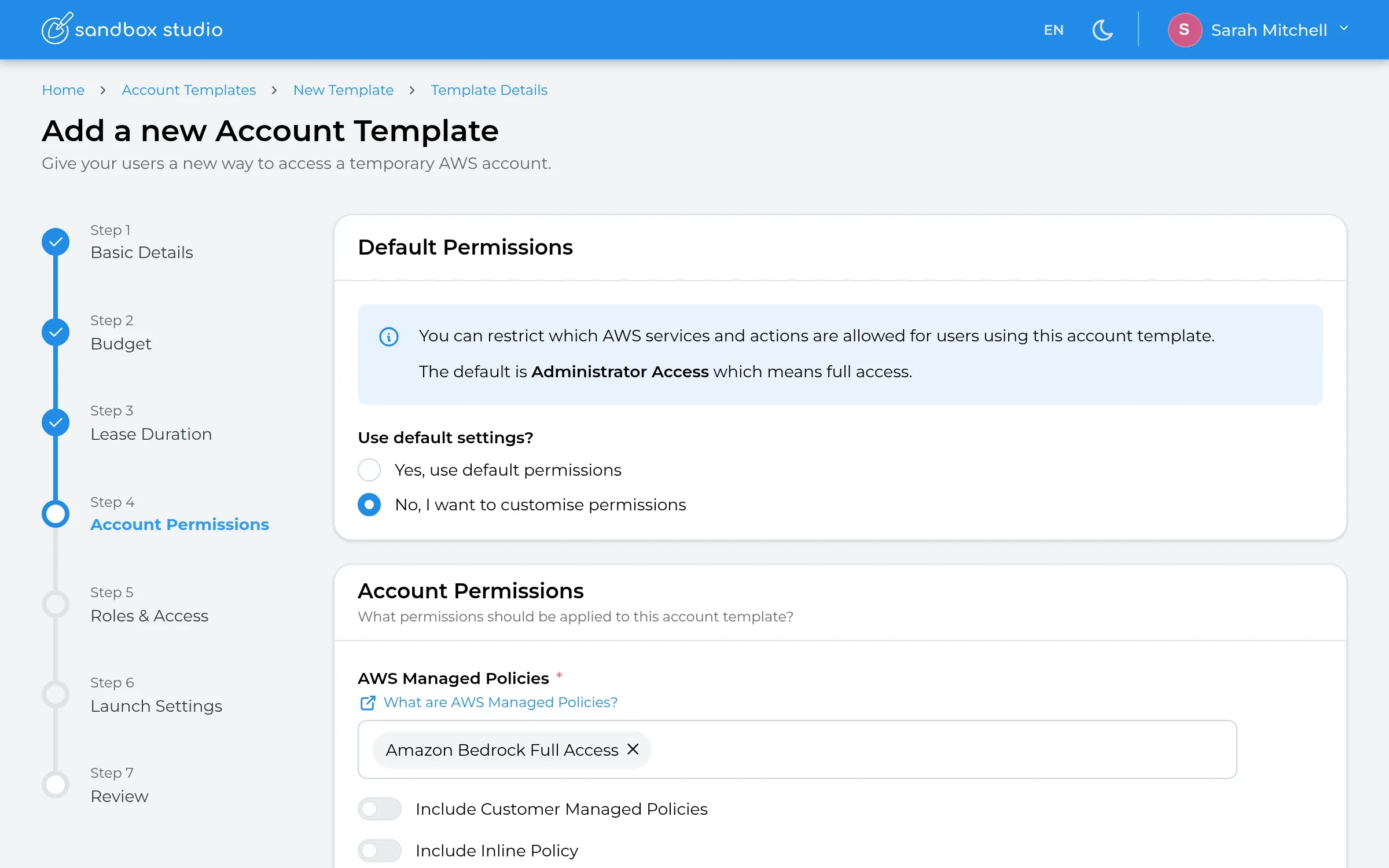
03 / 04
Set guardrails
Budgets, permissions and lifecycle rules.
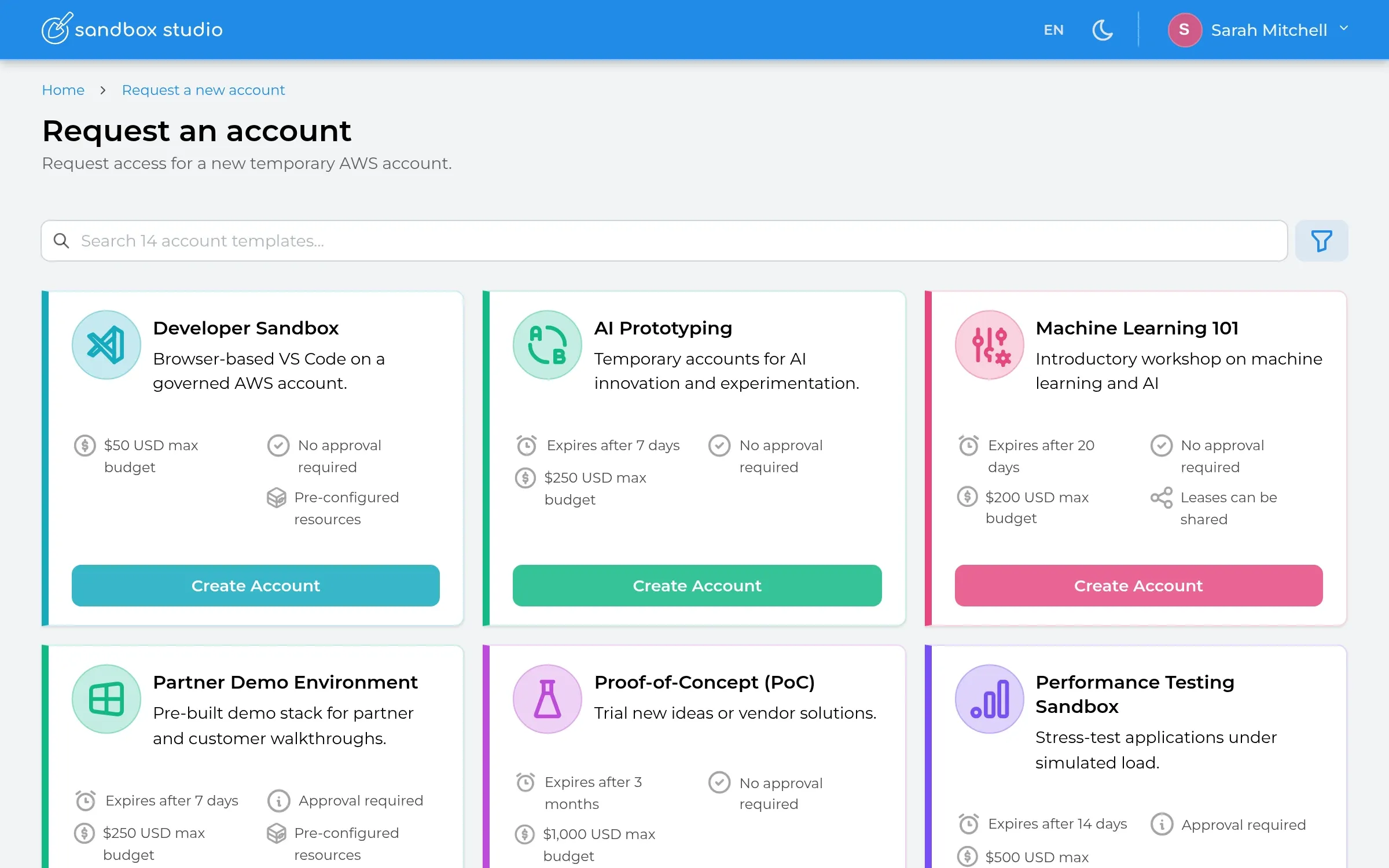
04 / 04
Launch sandboxes
Users request or receive governed accounts.
Scale further. Use the SBS API and MCP for automation, onboarding and faster template creation.
API and MCP →FAQ
Where is Sandbox Studio deployed?
Inside your own AWS Organisation, in an account you own. Sandbox accounts live in a dedicated organisational unit.
What AWS permissions and prerequisites are required?
You need administrator access to your AWS Organisation. The installation guide lists every prerequisite and the installer checks them for you.
How long does installation take?
Typically less than 1 hour. The guided installer runs in AWS CloudShell, checks prerequisites and deploys every stack for you, and the installation guide covers each step.
How does the free trial work?
Subscribe through AWS Marketplace to start a 30-day trial for up to 3 concurrent sandbox accounts with full platform features. There is no SBS software charge during the trial; AWS consumption charges apply.
How does Marketplace licensing work?
An annual subscription per concurrent sandbox account, billed through your AWS account with standard AWS invoicing.
Can I use existing CloudFormation or Terraform assets?
Yes. Launch templates can run your own Terraform, CloudFormation, AWS CLI scripts or other automation when an account is prepared.
How are users and identity providers connected?
You choose. Sandbox Studio works with the identity providers you already use, such as Microsoft Entra ID, Okta or Google Workspace, and can use more than one, for example separate sign-ins for staff and students.
What happens when the trial ends?
Your subscription continues on your chosen plan, or you can cancel any time during the trial.